
Use the browser
Open dApps in Morsel's built-in browser on iPhone and Android. The address bar, tabs, the site card, bookmarks, history and blocked sites.
The iPhone and Android apps have a browser built in, with your wallet ready on every page. On the Chrome extension, dApps open in normal Chrome tabs instead. See The Chrome extension.
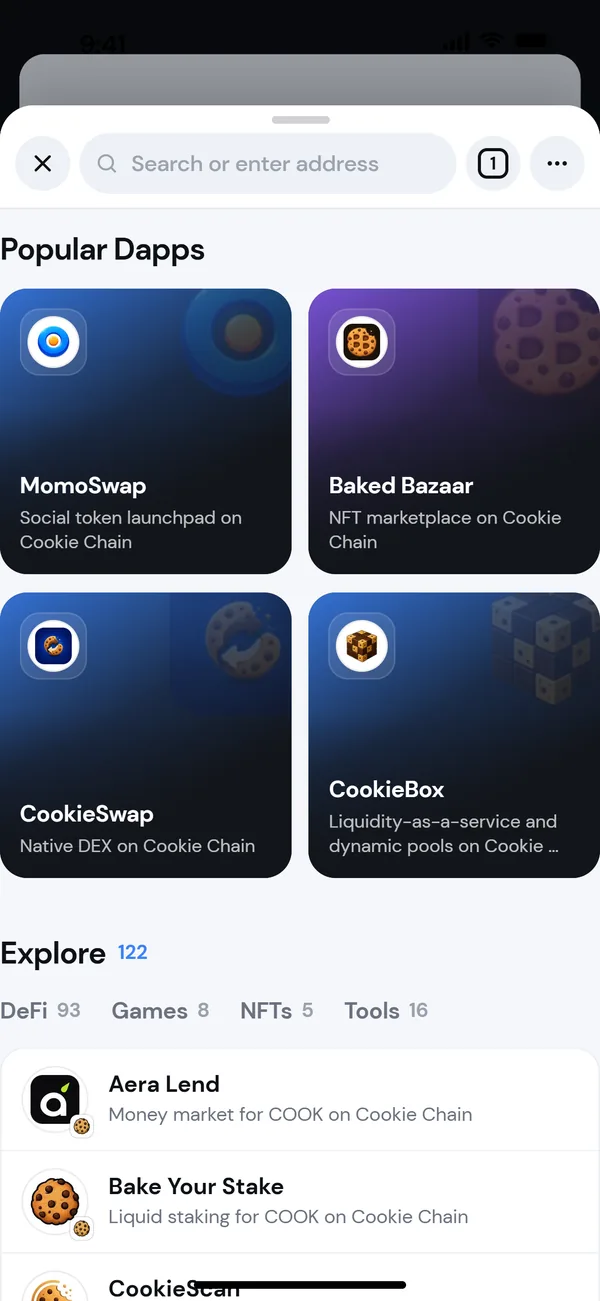
Open a dApp
- Tap an app in the Apps tab.
- Search for an app or type a website in dock search.
- Say "open the browser" or the app's name with voice search. See Search and voice.
- Tap a link to a website anywhere in Morsel.
The browser slides up as a sheet over the screen you were on. Pull the top of it down, or tap the close button, to put it away. Morsel keeps your page where you left it.
The Apps tab
The Apps tab lists apps built on Cookie Chain. Filter by DeFi, NFTs, Games or Tools, and tap the star on an app to add it to Your apps at the top. Apps you've opened recently appear there too.
The address bar
The pill at the top shows where you are:
- a green lock for a secure (https) site, or an orange lock for one that isn't;
- the site's domain;
- a green dot when the site is connected to your wallet.
Tap the pill to type an address or search. Recent sites and matching apps appear as you type. Use the back arrow inside the pill to go back, and the reload button to refresh.
Tabs
Tap the tab count to see your open tabs. Tap one to switch, New Tab to open another, or Close all. Tabs last until you close the app.
The ⋯ menu
Back, Forward, Refresh and Share, then:
- Bookmark: adds the site to Your apps if it's in the Apps catalog;
- Copy link;
- New Tab;
- Private Mode: see Private mode;
- Connected Sites: see Disconnect a site;
- Browser settings;
- Open in your browser: opens the page outside Morsel's wallet, in a standard browser view;
- Home and Close Tab.
The site card
Tap the lock or the green dot to open the site card. It shows:
- whether the connection is Secure;
- Wallet: which wallet the site sees, with Disconnect;
- Can: what the site can do, for example See your address · ask you to sign;
- Private Mode, with Turn on or Turn off;
- Network: Cookie Chain or Solana;
- Wallets and accounts, to switch the wallet the site sees. The page reloads.
History and browser settings
Morsel keeps a history of the sites you visit, on your device only, and never while Private mode is on. In ⋯ → Browser settings:
- Keep history for: 7 days, 30 days (the default), 90 days or Forever;
- Clear browsing history;
- Clear all browser data: history, favorites and site connections. Sites keep their own cookies and logins.
Blocked sites
Morsel checks every page against a list of known phishing sites. A match shows Dangerous site blocked instead of the page.
- Back to safety leaves the site. This is almost always right.
- I think this is a mistake. Report it tells Morsel.
- Continue anyway (not recommended) opens it for this session only.
A site that isn't blocked isn't automatically safe. See Avoid phishing and scams.