
Your Secret Recovery Phrase
Back up the 12 words that are your wallet, check your backup, view it again later, and keep it away from scammers.
Your Secret Recovery Phrase is a list of 12 words (sometimes 24) that is your wallet. With it, you can restore the wallet on any device. Without it, nobody can, including Morsel. In the app it's called your recovery phrase.
Back up your wallet
Do this right after you create a wallet. You'll need a pen, paper and about two minutes.
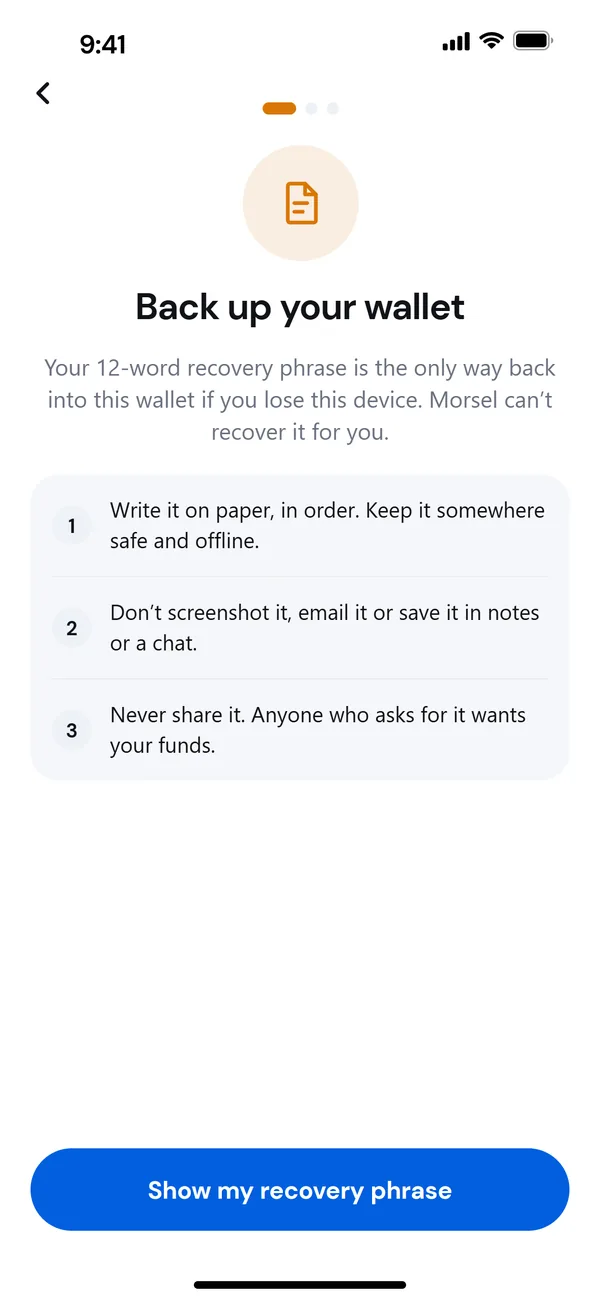
- On Home, tap Back up your wallet under your balance. You can also go to Settings → Security & privacy → Back up wallet.
- Read the three tips and tap Show my recovery phrase.
- On Confirm it's you, enter your password and tap Continue. If you use Face ID or your fingerprint, Morsel asks for that instead.
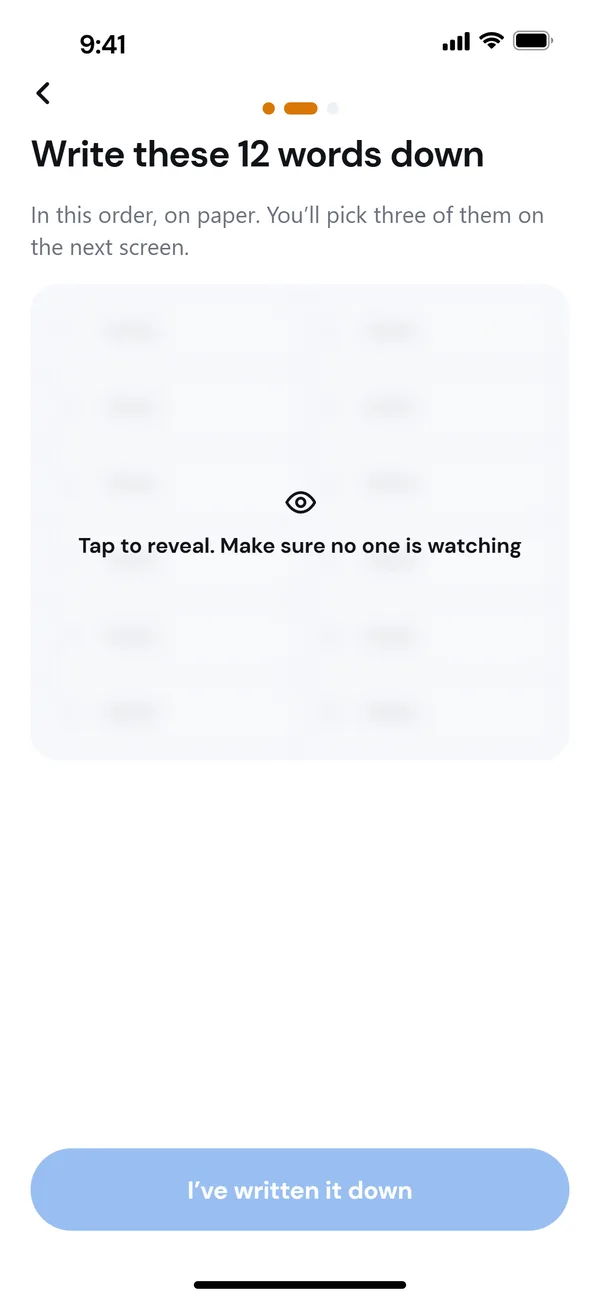
- On Write these 12 words down, make sure nobody can see your screen, then tap the blurred grid to reveal the words.
- Write every word on paper, in order, with its number. Then tap I've written it down.
- On Check your backup, pick the right word for each number shown, for example Word #4, from what you wrote.
- Tap Finish backup. You'll see Your wallet is backed up. Tap Done.
If you pick a wrong word, Morsel says Not that one. Check what you wrote down. Look at your paper again. If the paper is wrong, go back and copy the words again.
The chip disappears and Settings → Security & privacy → Back up wallet now says Recovery phrase saved.
Wallets imported with a private key
A wallet you imported with a private key has no recovery phrase. Its private key is the backup.
- Open the backup and tap Show my private key.
- Confirm it's you.
- On Save your private key, reveal the key and store it somewhere safe and offline. Copy puts it on your clipboard, and Morsel clears it after a minute.
- Tick I've saved my private key somewhere safe and tap Done.
Keep it safe
- Paper, offline. Write it down. Keep it somewhere safe, and consider a second copy in another place.
- Never digital. Don't screenshot it, email it, or keep it in notes, a chat or cloud storage. Morsel can't stop screenshots, so it's on you.
- Never share it. No real app, exchange, support agent or airdrop needs it. Anyone who asks for it wants your funds. Morsel will never ask for it.
View your phrase again later
- Go to Settings → Security & privacy → Recovery phrase & private key. For another wallet, open it from Manage wallet → Recovery phrase & private key.
- Read Keep these secret and tick I understand that anyone with these can take my funds.
- Tap Continue and confirm with your password, Face ID or fingerprint.
- Choose the Recovery phrase or Private key tab and tap to reveal.
The secret hides again after a minute, or as soon as you leave the screen. Anything you copy is cleared from the clipboard after a minute, as long as Morsel is still open.
The Private key tab shows the key in the base58 format other Solana wallets import. Use it to open this one address in another app.
Restore from your phrase
On a new device, install Morsel, tap I already have a wallet and enter your phrase. See Import a wallet.
Common questions
Can I skip the backup? Yes. The chip stays on Home and Back up wallet stays amber until you finish. Your funds are at risk until then.
Is my phrase stored anywhere online? No. It's encrypted on your device with your password. Morsel only remembers that a wallet was backed up, never the words.
I forgot my password. Does my phrase still work? Yes. The phrase restores the wallet with a new password. See Unlock, Face ID and auto-lock.