
Tokens and Manage tokens
Read your token list, open a token's chart and details, hide tokens you don't want, and add a token Morsel doesn't show.
Tokens on Home lists what you hold on the network you're on, largest value first. The network's own coin, COOK or SOL, is always there.
Read a token row
Each row shows the token's logo with a small network mark, its symbol, how much you hold, what it's worth and how its price moved in 24 hours.
Some tokens carry a badge:
| Badge | Meaning |
|---|---|
| Blue Verified tick | A token Morsel has verified. |
| Grey tick, Known ecosystem token | A token known in the Cookie Chain ecosystem. |
| No badge | Not verified. That doesn't mean it's a scam, but check it carefully before you trade it. |
Tap a badge to see what it means.
Open a token
Tap a token to open its page.
- Chart. Choose 1H, 1D, 1W, 1M, YTD or ALL. Press and drag on the chart to read the price at any point.
- Send, and next to it Swap for a token you hold, Buy for one you don't, or Stake on COOK.
- Your Balance. For COOK it splits into Available and Staked.
- Details, when Morsel has them: volume, liquidity, holders, market cap, supply, decimals, creator, the token's age and its contract address. Tap the address to copy it.
- Mint Authority and Freeze Authority. Revoked in green means nobody can mint more of the token or freeze it in your wallet. An address in amber means someone still can.
The ⋯ menu has Share, Copy address, View on explorer, Set price alert and, for tokens you hold, Burn.
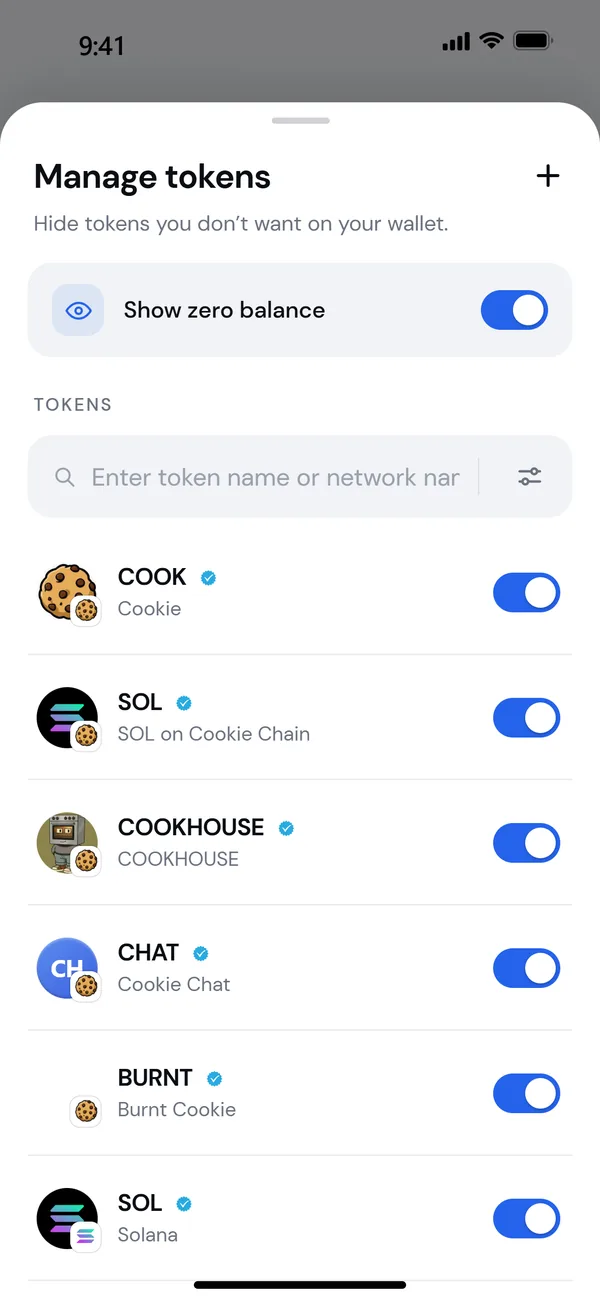
Manage tokens
Open Manage tokens from the sliders icon in the Tokens header, the Manage tokens row at the end of the list, or Settings → Manage Tokens.
- Hide or show a token with its switch. Hidden tokens stay in your wallet, untouched. Morsel just stops showing them, on this network.
- Find a token with the search box, or tap Filter and choose Enabled tokens, Disabled tokens or Custom tokens.
Tokens that look suspicious carry an amber warning triangle in Manage tokens. Hide them, and don't interact with them.
Add a token Morsel doesn't show
- In Manage tokens, tap +.
- On Import token, choose the Network.
- Paste the Contract address. Morsel fills in what it can find.
- Check the Symbol, Decimals and Token name.
- Tap Import token.
The token shows on Home once you hold some. To edit or remove it, tap the pencil next to it in Manage tokens, then Save token or Remove token.
Tokens you didn't buy
Wallets receive tokens nobody asked for. Most are spam, and some are bait: their name or logo tells you to visit a site to "claim" something. That site drains wallets.
- Don't visit links in token names or descriptions.
- Don't try to sell or swap a token you didn't buy.
- Hide it in Manage tokens and move on.
See Scam tokens and NFTs.