
Bots in chats
Start a bot, use its commands and buttons, pay it, add it to a group or use it in any chat, and stop or report it. What a bot and its owner can see.
A bot is a chat that a program answers. It replies to commands, shows buttons, and can ask you to pay. Every bot has a Bot badge next to its name, so you always know when you're not talking to a person.
Bots are made and run by their owners, on their own servers. Morsel doesn't run them.
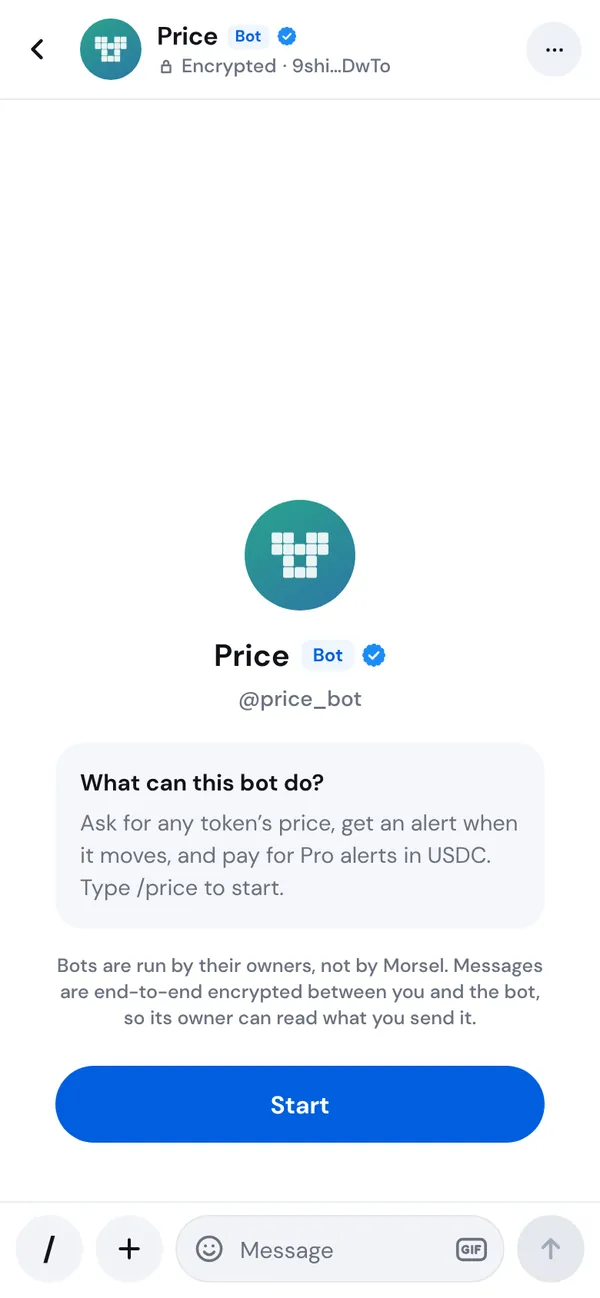
Start a bot
- Find the bot. In Chats, search for its
@usernameor its name. Or open a link someone shared, likehttps://morselwallet.app/b/price_bot. - The chat opens with the bot's picture, its name and What can this bot do?
- Tap Start.
Start sends /start to the bot. A bot can't message you first: it only hears from you once you write to it. If you opened a link that carries a code, for example from a shop or a friend, Start sends that code along, so the bot knows where you came from.
Commands
Commands are words that start with /, like /price or /help.
- Tap the / button at the left of the message box to see the bot's Commands, then tap one to send it.
- Or type
/in the message box for suggestions.
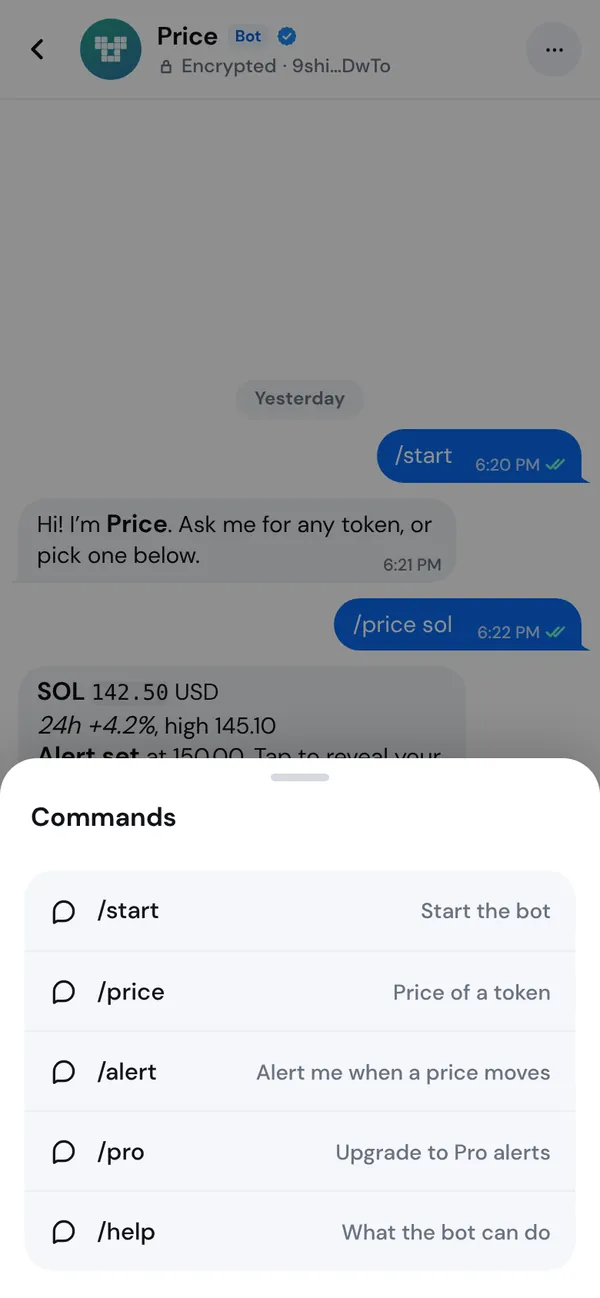
Bots can describe their commands in several languages. Morsel tells the bot which language your app uses, so it can answer in it.
Buttons under a message
A bot can put buttons under its messages. Each one does one thing:
| Button | What happens |
|---|---|
| A plain button | Your tap goes to the bot. A small spinner shows until it answers, often with a short note or an alert. |
| A button with a link icon | Opens a website. Morsel shows you its domain first. |
| A button that opens an app | Opens a page in Morsel's browser. If the page asks to connect or sign, you approve it in the usual sheet, as with any dApp. See Approve and sign safely. |
| A button with a copy icon | Copies text, like an address or a code. |
| A button with a $ | Opens Send, filled in to pay the bot. You still review and confirm. |
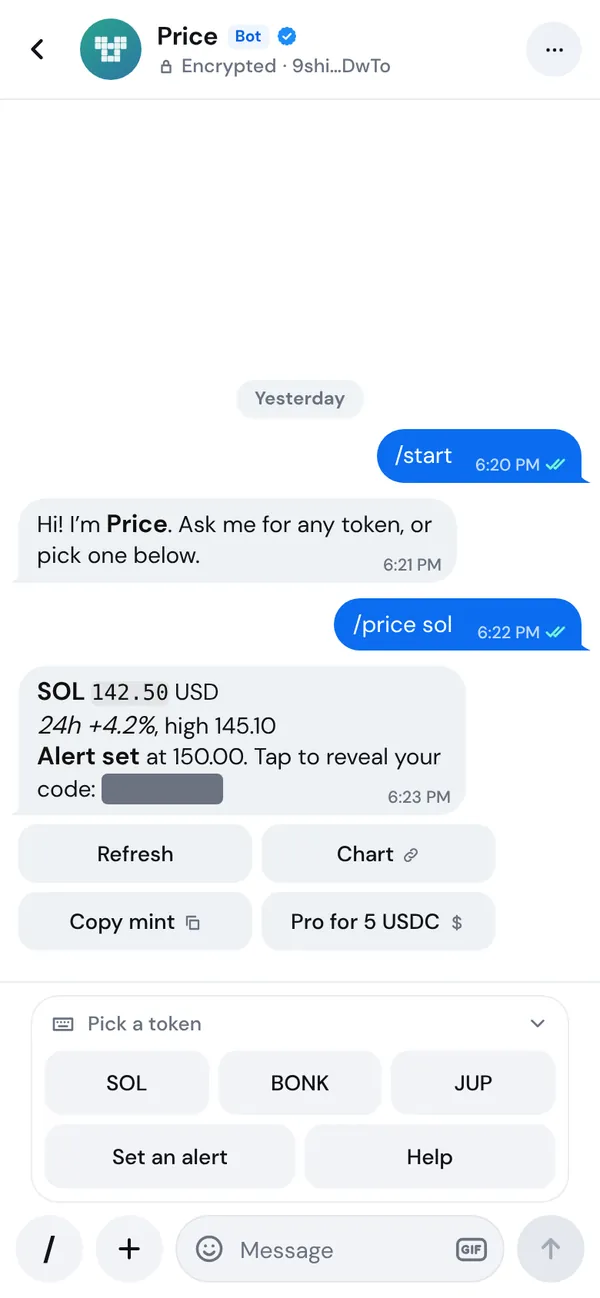
Bots can edit their own messages for up to 48 hours, buttons included. A message may change after you tap one of its buttons. That's normal.
Reply buttons
Some bots show a panel of buttons above the message box, like answers to pick from. Tapping one sends its words as a message from you, as if you had typed them.
To get the message box back, tap Hide the bot's buttons. Tap Show the bot's buttons to bring them back. Some panels close by themselves after one tap.
Pay a bot
A bot can ask you to pay, with a $ button or a payment card. Either way:
- Morsel opens Send with the bot's address, the token and the amount filled in.
- Check the amount, the token and the network.
- Press and hold to send, as with any payment.
A bot can never take money from you. You always review and confirm. The bot checks the payment on chain before it counts it.
See Payments in chats for how payment cards work.
Bots in groups
Group owners and admins can add a bot to a group:
- Open the bot's profile and tap Add to group, or add its
@usernamefrom the group's members. - Pick the group.
- Read Add @username to the group? and tap Add bot.
A bot is a member like any other, with a Bot badge. It can't add or remove people, and it can't be an admin.
What a bot in a group can read
Bots start in privacy mode. A bot in privacy mode only receives:
- commands, messages that start with
/; - messages that mention it;
- replies to its own messages;
- taps on its own buttons.
Every other message never reaches it. Morsel's servers don't deliver it to the bot at all. The group's info says Bots here see only commands and messages addressed to them.
A bot's owner can turn privacy mode off. The bot then receives every message in the group. When that happens, the chat shows a line like Quiz night can now read all messages, and the group's info shows Quiz night can read all messages in this group. Check this before you add a bot to a private group.
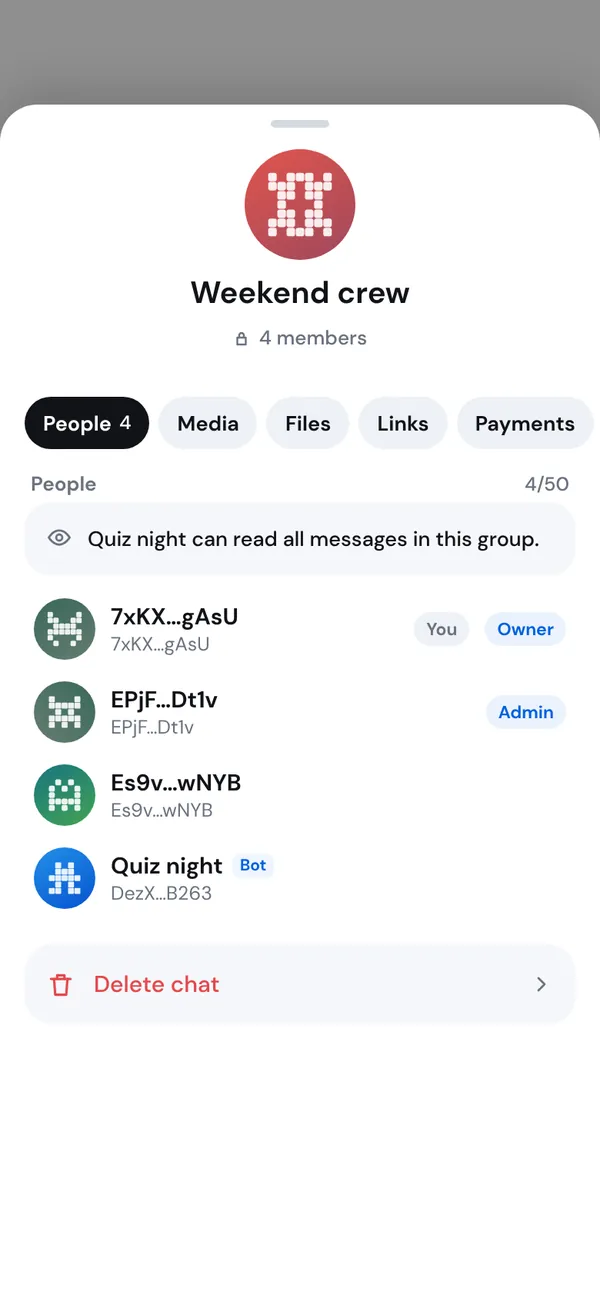
When you tap a bot's button in a group, only you and the bot know. Its answer is shown to you alone.
Use a bot in any chat
Some bots work in any chat, even one they aren't in. This is called inline mode.
- In any chat, type
@and the bot's username, then a few words. For example@price_bot jup. - The bot's answers appear above the message box.
- Tap one to send it.
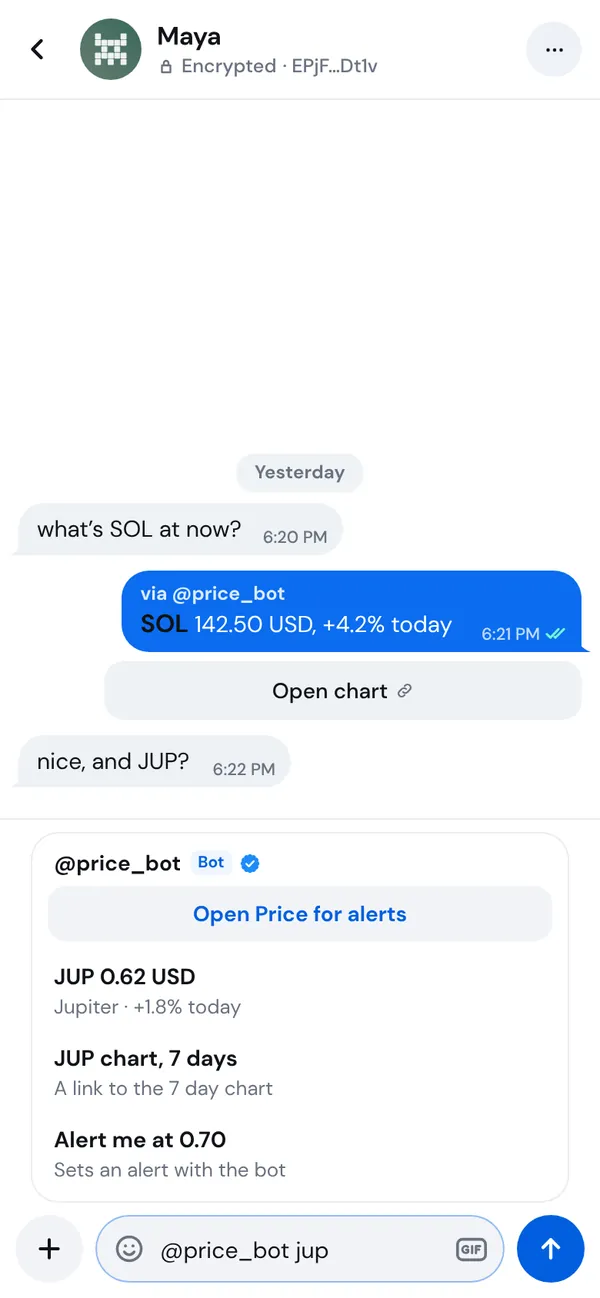
The message is sent by you, marked via @username. The bot learns what you typed and your address, but never which chat you're in or who else is there. Pictures in the answers load through Morsel or from GIPHY, never from a server the bot picks, so the bot doesn't learn your IP address from them.
Verified bots
A blue check next to Bot means Morsel has verified the bot. It doesn't mean Morsel runs the bot or can read what you send it. Bots without a check can be fine too. Take more care with them, especially before you pay.
Stop or report a bot
Tap the bot's name at the top of the chat to open its profile.
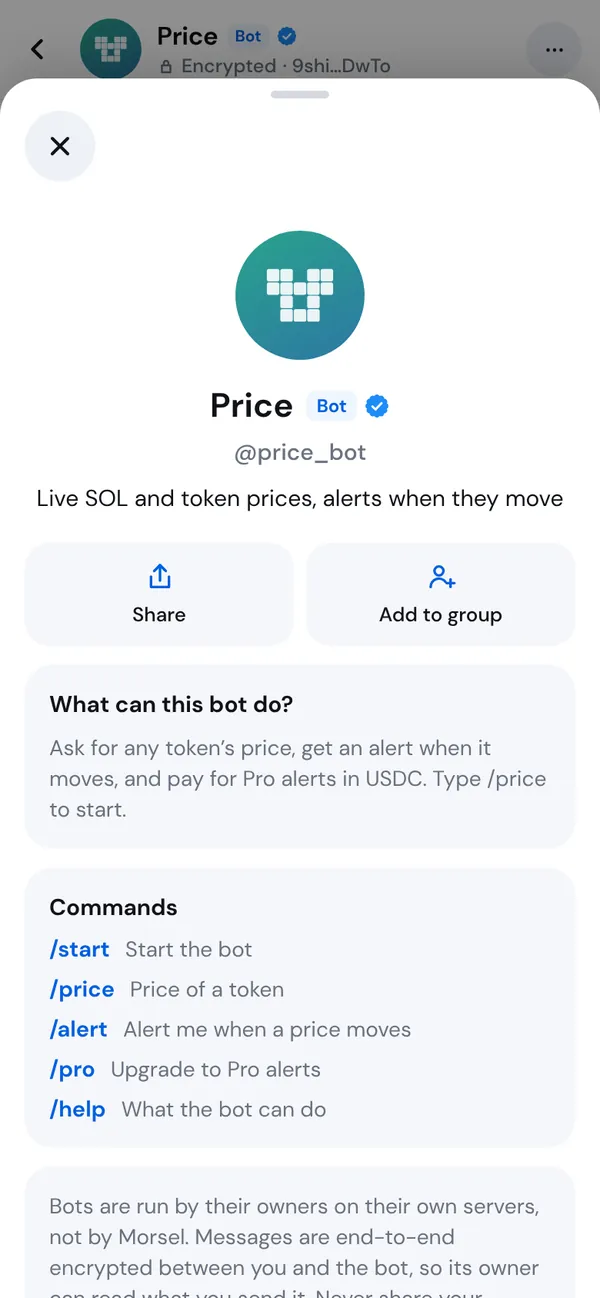
- Stop bot: confirm Stop this bot? The bot can't message you any more. You can start it again later with Unblock. The bot is told that you stopped it.
- Report: confirm Report this bot? Morsel reviews reports of bots that spam or scam. The bot is also stopped.
To share a bot, tap Share in its profile. Morsel copies or shares its link.
Encryption and what the owner sees
Chats with bots are end-to-end encrypted, like every chat in Morsel. Morsel's servers can't read them. See Chat privacy and encryption.
But a bot is run by its owner. The owner's server decrypts everything you send the bot, so the owner can read it: your messages, files, button taps and inline searches. Write to a bot as you would to a stranger's inbox.
If a bot's owner gives it a new key, your chat stays one chat. A line says This bot moved to a new key, and your earlier messages stay readable above it.
Want to build a bot? See Morsel Bots.