
Restore with a passkey
Bring your wallets back on a new iPhone or Android phone from your iCloud Keychain or Google passkey, with no recovery phrase to type.
If you turned on passkey backup on your old phone, your wallets can come back on a new one in a minute.
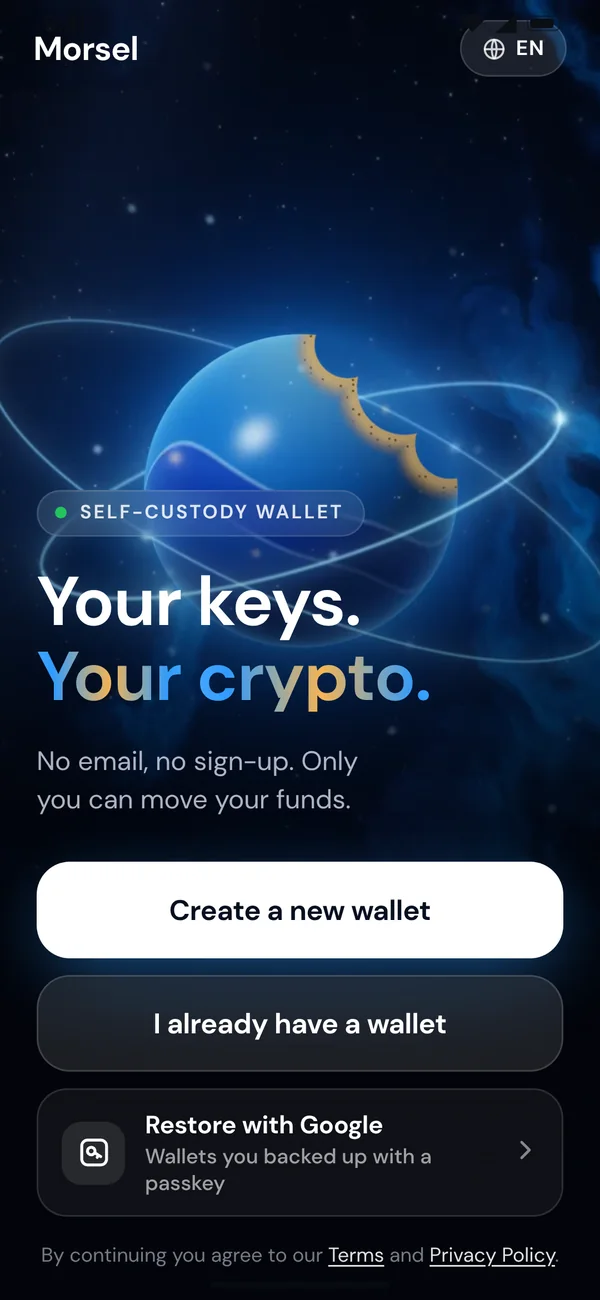
Restore
- Install Morsel and open it.
- On the welcome screen, tap Restore from iCloud Keychain (iPhone) or Restore with Google (Android). It says Wallets you backed up with a passkey.
- Tap Use my passkey, then approve with Face ID, your fingerprint or your device passcode.
- Morsel decrypts your backup on the device. Your backup is open and lists the wallets in it. Tap Restore wallets.
- Set a PIN for this phone to finish. Your wallets are back.
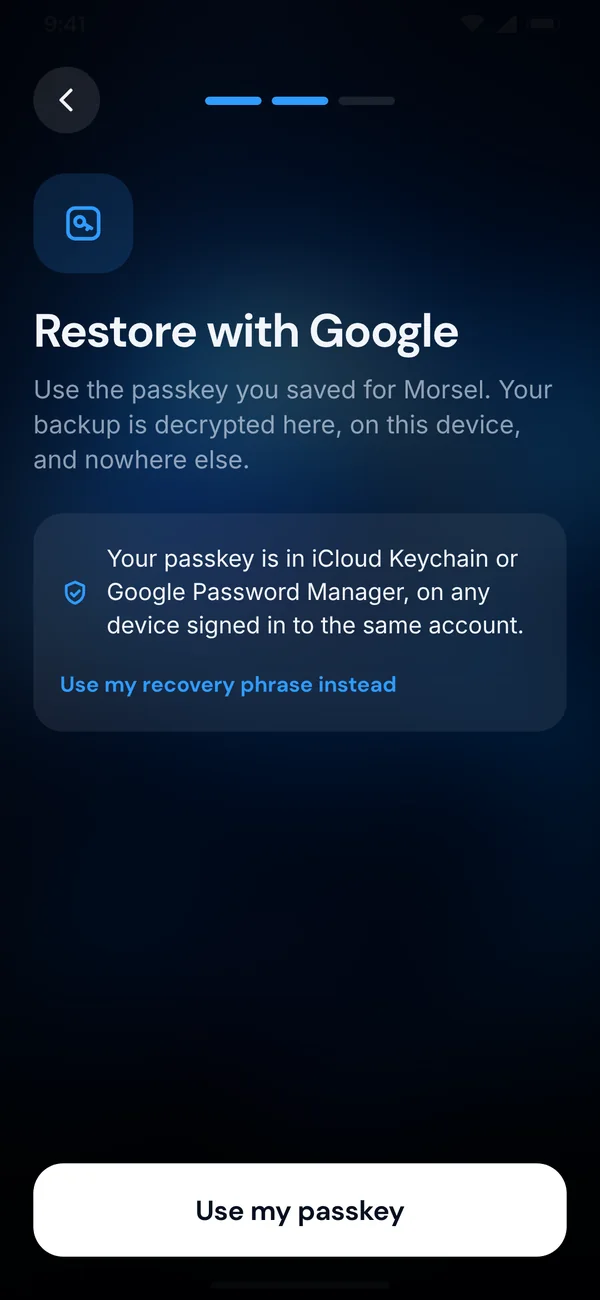
No button?
The restore button only shows on a phone that can use passkeys (iOS 18 or later, Android 9 or later). Otherwise use your recovery phrase: tap I already have a wallet. See Import a wallet.
If some wallets don't come back
Some wallets in the backup could not be restored. Use their recovery phrases for those. A backup holds a limited number of wallets; any beyond it need their phrases.
There's no Morsel passkey on this device or This passkey has no backup: see Passkey backup.